Teach Your Photo Library Three Ways to Find a Picture
Compare date, descriptive search, and an explicit album on a small set of familiar photos, then give important pictures a fallback you control.

In this article
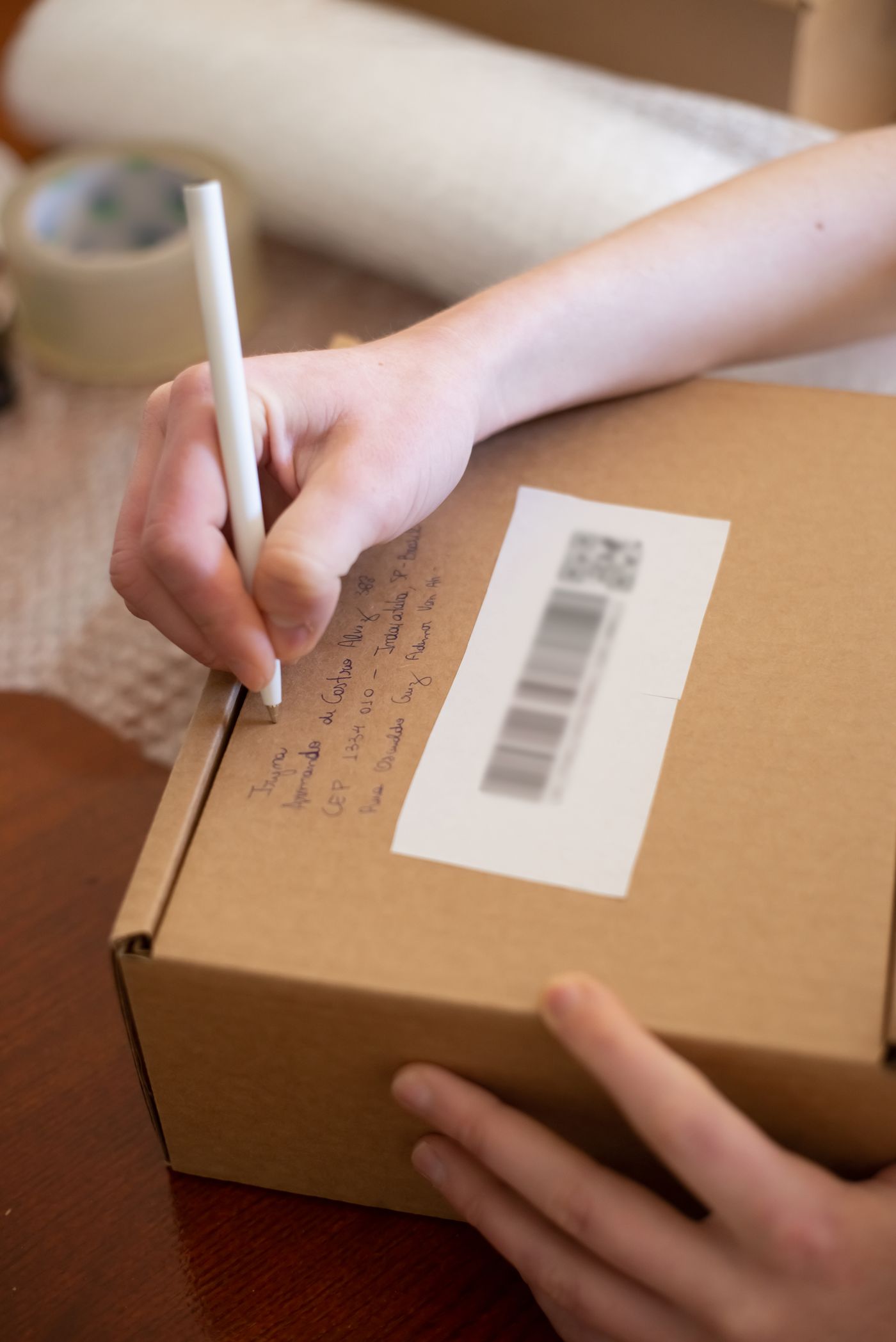
You can remember the bicycle in the picture, but the bicycle is not the reason you need the picture. You need the serial number of a lock, written on the back of its packaging. In the image the box is small, surrounded by a handlebars bag, two spare keys, and somebody's sleeve. A search for bicycle might find the right afternoon. A search for lock might produce any of a dozen unrelated photographs. A search for the number might work only if the photo is sharp enough and the search engine read the text correctly.
That example explains why one kind of search cannot stand in for the rest of a photo library. An album can hold items you deliberately placed there. A search may find scenes you never labeled. The date can narrow a set of near duplicates when you know when the relevant event happened. All three paths are worth knowing. None requires you to go back through a decade of pictures tonight.
Three paths through the same collection
A date-led search starts from when an image was taken or recorded in the library. A person who remembers that a repair happened on the first weekend in April can often make fast progress by going to that weekend. If the collection contains imports, copies sent by friends, and photos rescued from another phone, the date you see can reflect different events. Look at the date shown in the photo information if the expected record is missing. The chronology may be internally consistent and still differ from the date you remember.
A visual or descriptive search starts from what appears. Some libraries recognize objects and scenes, and some can use text that appears inside a photo. Capabilities and availability vary with the app and device. The results often trade precision for useful suggestions. You might search for “red raincoat” and get two jackets, a fabric sample, and a backpack that looks close enough. That broad net is helpful when you remember a scene and have no date. It can also let an important picture sit well below several more visually obvious matches.
A manual path starts from what you called the picture or where you chose to put it. A person might save three warranty photographs into an album named “Bike repair records,” add a useful caption, or keep an export with a meaningful filename in a project folder. That decision creates an organizing clue based on purpose. The software cannot necessarily infer that a picture of a box belongs to an equipment record. A manual clue is a small amount of work targeted at the image you expect to need again.
Assemble a collection you can score by hand
Pick between ten and twenty ordinary photographs that you can identify confidently. They can be pictures of possessions, a garden, or an outing, with no private material required. Include one photo that shows a clear object, one that shows the same object in the background, and two taken close together that mean different things to you. A receipt and a product photo are useful contrasts. Include a text-bearing image with something invented or harmless, such as a label that says “green tray B17.”
Write a short answer key before searching. For each image you care about, note its reason for inclusion, date if known, and a detail that distinguishes it from nearby photographs. For instance, “Lock packaging with two keys, silver box, after the blue bicycle picture” records things you can use in different ways. Include one question that should return no match. If the collection contains no orange backpack, the engine may still show plausible orange things. That teaches you something about how to interpret the results.
If indexing a separate collection would require uploading images you would rather keep local, use a small group of images already in the library or choose a search feature appropriate to your device and preferences. In a shared household library, use consent and common sense about whose photos you label. The test needs familiar scenes, and a few pictures of ordinary objects will do. Who appears in them is rarely important to the measurement.
Run the date and query tests separately
Try recovering the lock photograph using time alone. Start with the month you think you remember and narrow toward the related picture of the bicycle. If you find a photo from the event, inspect its nearby images. Compare the recorded dates of photographs imported from multiple devices. A mismatch may come from import behavior, an incorrect device clock, or the copy losing capture metadata. You can still use a good reference image to find the group, as long as you understand the limits of the first date you chose.
Then clear the date constraint and try a query about the visual contents. Start with the distinctive large subject. Move from “bicycle” to a phrase that describes the visible scene if your app supports that kind of search. Watch whether the expected item rises within the results as you add details or vanishes because one part of the phrase is not recognized. For a phrase printed on a clear label, search it exactly once and try a shorter distinctive fragment if the result is empty. Inspect the source image before deciding whether the written material was actually readable.
Mark success by whether the correct picture is easy to identify in the result, not by whether one crop vaguely resembles it. If the first two results are unrelated but the right picture is in the first screen, the search may still save time. If three pictures have nearly identical views of the packaging and only one shows the relevant side, use the other cues to choose. The engine found a scene. You still need to identify the information you came to retrieve.
Make a small album around a job
Create an album or folder for an activity, not for a visual class you can already browse. “Parts for the blue bicycle,” “House move inventory,” and “Progress photographs for the desk restoration” describe reasons to return. Put the few pictures you will want in that location. Include the evidence that actually supports the work, even when a picture is untidy or has a blank background. You can keep a prettier version elsewhere if it serves a different purpose.
Test whether the album survives the move you are likely to make later. If you use an album in a cloud service, a person using another app or a second household member may see different organization depending on permissions and the export method. If you save copies to a local project folder, filenames can travel with the files while service-specific captions or album membership may not. Verify a small export where that matters. Open the exported photo and read its filename and any important captions separately. The simplest durable reference might be one project note that names the exported file.
Choose how much maintenance you want. If you take a picture of every receipt, you may want a routine for discarding or archiving those records after they are no longer needed. If you document only occasional repairs, a small album with ten photos can remain straightforward for years. Avoid organizing every image in advance of every possible future question. Put the extra work into pictures with a known use.
Give difficult images two independent cues
A picture of a label is a good case for redundancy. Make the text as readable as you reasonably can and save a short textual reference outside the image when the information matters. A picture taken for proof can then serve as proof, while the reference can serve as search material. This also helps a person with another device or less familiarity with your photo app. A filename or note containing “garage remote sticker” is accessible without first knowing whether an object model understands garages or remotes.
For an image that has no obvious distinguishing objects, attach a little context. A photograph of three plain cardboard boxes can be an excellent record if the project name and contents are easy to find. Without that information, any of the three boxes may look like a visual match. In a collection of similar product shots, a temporary sequence number, capture date, or angle noted in a file name can select the right frame more reliably than a more elaborate human-language query.
Revisit the test after a week. Ask yourself to find the target pictures without opening the answer key first. Leave a note of the search terms that worked well on your device. The photo you retrieve fastest may use a different path from the photo next to it. That is what a useful library feels like. You can discover scenes by search and still have a dependable way to retrieve a small group of crucial images by name or album.
Product documentation
Google Photos documents its search features and supported ways to search. Treat that documentation as a description of one product, and check the controls available in your own photo library.