Find Where the Sound Went When You Connected a Monitor
Follow one known audio source through the app, computer, cable, monitor, and speaker before assuming that any of the equipment is broken.
In this article
You plug a laptop into the larger screen. The picture arrives immediately. A video that was playing a minute ago suddenly offers a perfect silence. The volume keyboard still changes a number. The speaker beside the monitor still has its light on. Neither observation tells you which device the computer chose as its output when a new display appeared.
Modern computer audio often has several routes. The app can select one, the operating system can have a default, a dock can expose another, and a monitor can advertise an audio path even if you are not using a speaker connected to it. A useful diagnosis follows one known sound from its source to the place you expect to hear it. That keeps “the sound stopped” from becoming a series of unrelated changes to everything with a volume control.
Name the route you actually want
Start by describing it in a sentence. “The video plays through the speakers plugged into the computer” is one route. “The laptop sends audio to the monitor, which passes it to the speakers attached to the monitor” is a different route. The same visible pieces of equipment can support both arrangements. Look at the end of the speaker cable or check the device's ordinary wireless connection before choosing which arrangement you want. It helps to name the physical end point first.
Choose a short audio clip you are allowed to play and that you know contains audible sound from the first few seconds. Use a comfortable level and start with one app. A long stream may buffer, run an advertisement, or pause for a reason unrelated to sound. A familiar local sample makes it easier to verify that the playhead is moving. If you use headphones during the check, keep the level modest before changing outputs. The next device may have a different volume even when the on-screen control looks similar.
Check whether the equipment actually supports the desired route. Some monitors have speakers, some have an audio output for another device, and some are designed primarily for picture. A connector on a monitor has a purpose you can verify in its manual. An audio input is different from an output. A model that looks almost identical can have different features. Inspect the documentation for the exact model if a test depends on the availability of a port or built-in speakers.
Start from the application and system controls
Check that the test app is playing, its own volume is reasonable, and neither the player nor the browser tab is muted. Test a second local source if the first file is uncertain. Sound in another app is useful evidence. It suggests that the computer can reach at least one output, although the first app may be using a separately selected route or may have a problem of its own. A call app, for example, can have distinct speaker and microphone choices inside its settings.
Open the operating system's sound output selection and look at the current device. The name of a monitor, dock, digital output, or built-in speaker can appear alongside several other choices. Select the one that corresponds to the route you named. Observe the result before changing another control. If the sound meter moves beside an output you do not intend to use, that is a more actionable fact than a general suspicion that the speaker has failed.
Distinguish output from input. An active microphone meter says that the computer hears something in the room. It does not show which speakers are receiving the sample clip. A mute control for a call's microphone will not mute the local test sound. In an app that offers its own output picker, see whether it is set to follow the system or to a specific device. A meeting can use the headset after the rest of the computer has moved to the speakers, and this may be something you want to retain.
Check the screen as a destination and as a pass-through
If you expect sound through the monitor, verify which input it is using and how its on-screen audio controls are set. A display might remember separate volume or source settings for different inputs. If its own speakers work with the test sound but external speakers connected to it do not, focus on the speaker connection, the monitor's output setting, and the speaker's selected input. Changing the computer's browser settings at that point is unlikely to answer the remaining question.
Digital display connections often carry audio when the devices and adapters support it. A path can still be incomplete with a video-compatible adapter or an unusual combination. Follow the equipment documentation rather than assuming that a picture verifies audio throughout the chain. If the intended audio output never appears in the computer's list, compare with a known supported connection and keep the other equipment state the same. A direct route, where appropriate, can help distinguish a dock or adapter issue from a monitor setting.
If the monitor is only there for the picture and you want to hear the computer's own speakers, select the computer's appropriate output. Some systems change the default when a new audio device connects. Reconnect the monitor once after the test and check whether the choice stays where you set it. Wake the laptop from sleep and repeat the check. A configuration that works after one manual selection might still need a predictable way to restore it every day.
Confirm that the last piece is receiving what you send
For powered speakers or a separate audio device, check its ordinary power and input selection. A light can indicate standby without showing that the intended input is active. Follow the speaker's instructions for selecting its input and using its normal volume range. If you can use another known input source safely and appropriately, that comparison helps show whether the speaker can play sound at all. Return to the test audio and intended route afterward.
Consider the physical connectors without forcing anything. A plug that is partly seated may produce little or no useful audio. A speaker set can have a connection between its two sides in addition to the connection to the source. Check the parts identified in the instructions while following any directions about turning the device off before reconnecting it. Handle ordinary removable connectors only, and leave sealed or powered internals alone. A damaged cable or port belongs in its own maintenance decision.
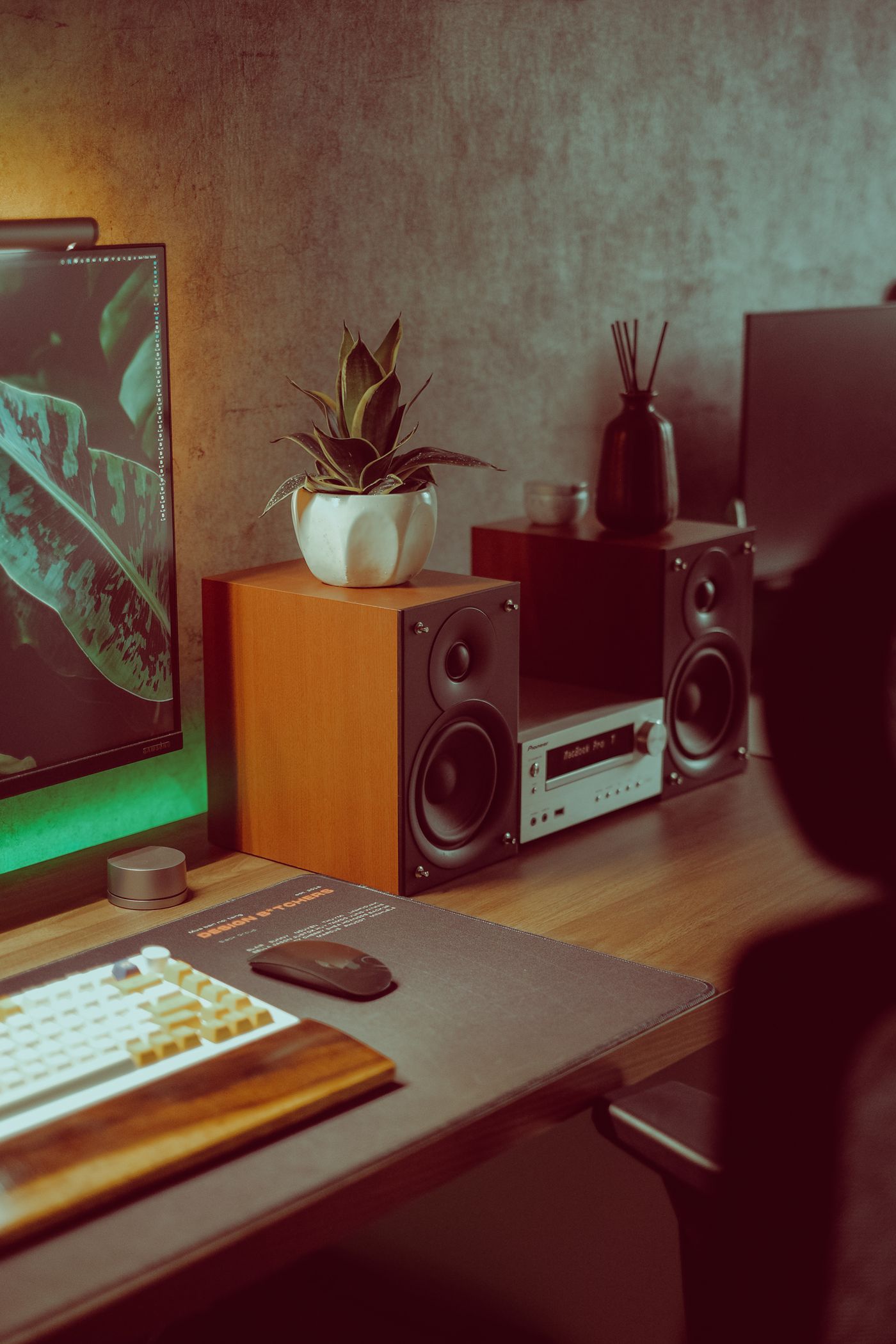
If one side is missing, play a familiar clip that uses both channels and inspect balance settings on the relevant device. A source with sound recorded mainly on one side can mislead you. A sound that repeats on the same side with other sources warrants a different check than a sound tied to one recording. Do not turn every control up at once to compensate for a missing channel. As soon as the correct route becomes active, a previously quiet device might be far louder than you want.
Leave a route others can use
Give the successful arrangement a short description. If the system shows two distinguishable device names, write down which one sends sound to the external speakers and which one belongs to the monitor. Put that information near the desk if another person uses it, and keep the description tied to a recognizable position or label. When people use both a meeting headset and desk speakers, a single explanation of which app follows which output can save a surprising number of interruptions.
Try the original event once more: start the known sound, connect the display under ordinary conditions, and verify that the picture and sound both go where you want. If the software chooses another route, note the specific action that changes it back. That may be a taskbar selection, a setting in one call app, or a choice of playback input at the speaker. Keep that action simple enough to remember next time.
The quiet clip taught you something useful if you can say where the sound was going and why you could not hear it. Replacing equipment makes sense when a controlled comparison points to a failed or unsuitable part. A working output you never meant to select has a much smaller solution. The time spent tracing the path is what separates those two cases.
Sometimes the best arrangement is different when you are on a call than when you are watching a local video. If those two paths intentionally remain separate, test each and note the difference. You can leave the call microphone and speaker tied to your headset while letting ordinary media follow the computer. This makes a future change of output less surprising and gives another person at the desk a way to check why one application still sounds different. Make the same check after a software update if the selection menu changes, using the familiar test audio to verify the audible result. A screen label alone cannot establish which speaker played it. Try it at the start of the day while all of the devices are in their regular positions.