Make a TV Input Map Before Moving the Cables
Connect the living room’s inputs to names people can recognize, and use a short comparison to trace a missing console picture.
In this article
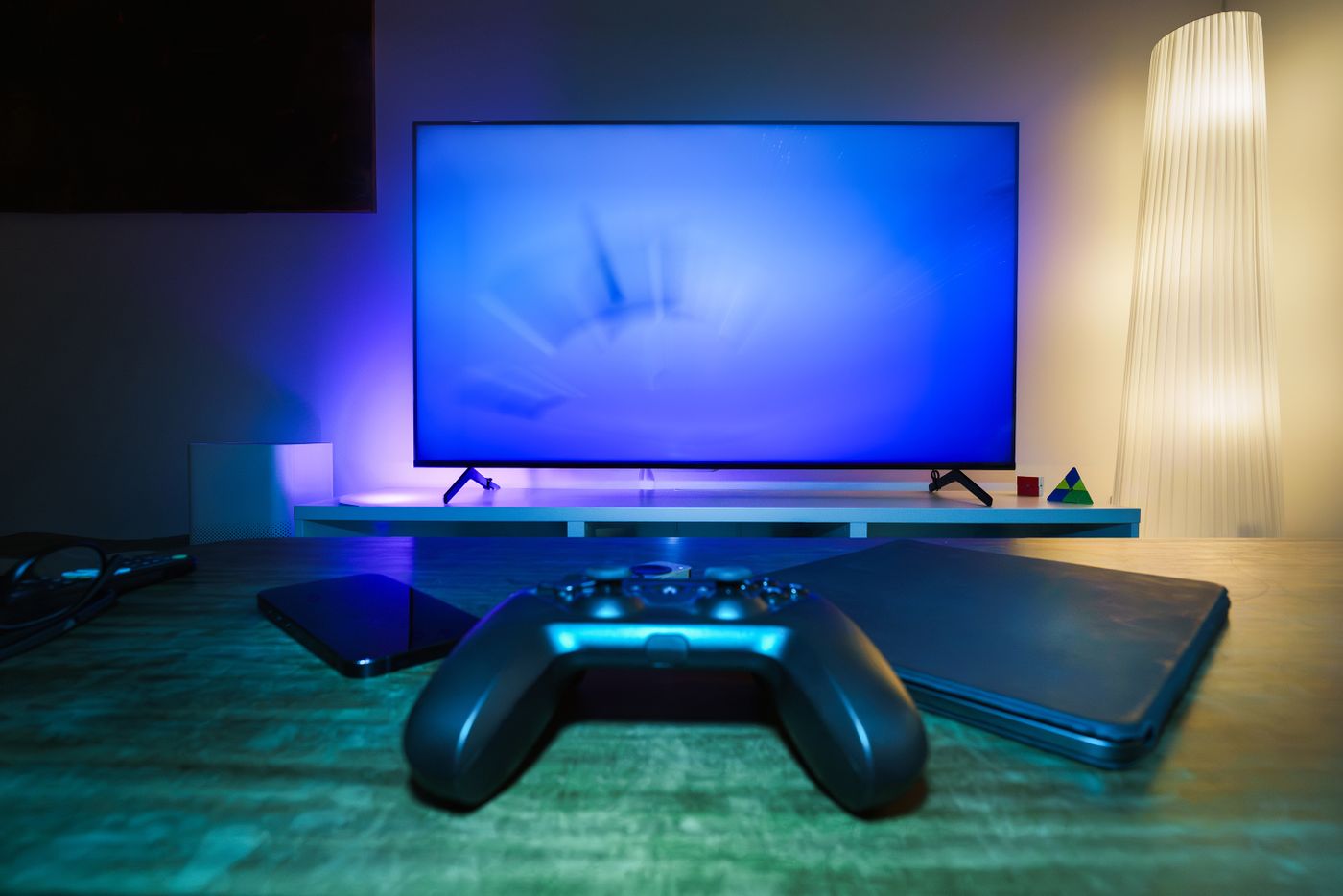
Somebody presses the console button and the television wakes to a blue screen. The controller appears connected. The television remote has an input button, but the available choices are HDMI 1, HDMI 2, and a label that used to belong to somebody's old streaming box. This is the sort of fault people often try to solve by moving cables. If a cable is connected to a receiver in a cupboard or hidden behind the screen, a new arrangement can make the original problem harder to explain.
An input map gives the hardware a small set of useful names. It tells you which device should be awake, which TV input should be selected, and whether another box has to pass the picture through. Keeping that map beside the remote makes an ordinary evening easier. It also gives you a known starting point when a device no longer appears. You can compare one path at a time without needing to decide whether every component is working perfectly.
Identify the chain from the seat first
Use the TV remote to open its input selector and record the names you can see. A built-in streaming app may open through Home, even if it feels like one more source in daily use. It does not occupy an HDMI connector the way an external box does. Separate the named inputs from apps when recording the list. This helps when a built-in app works, but an external console still does not have a visible picture.
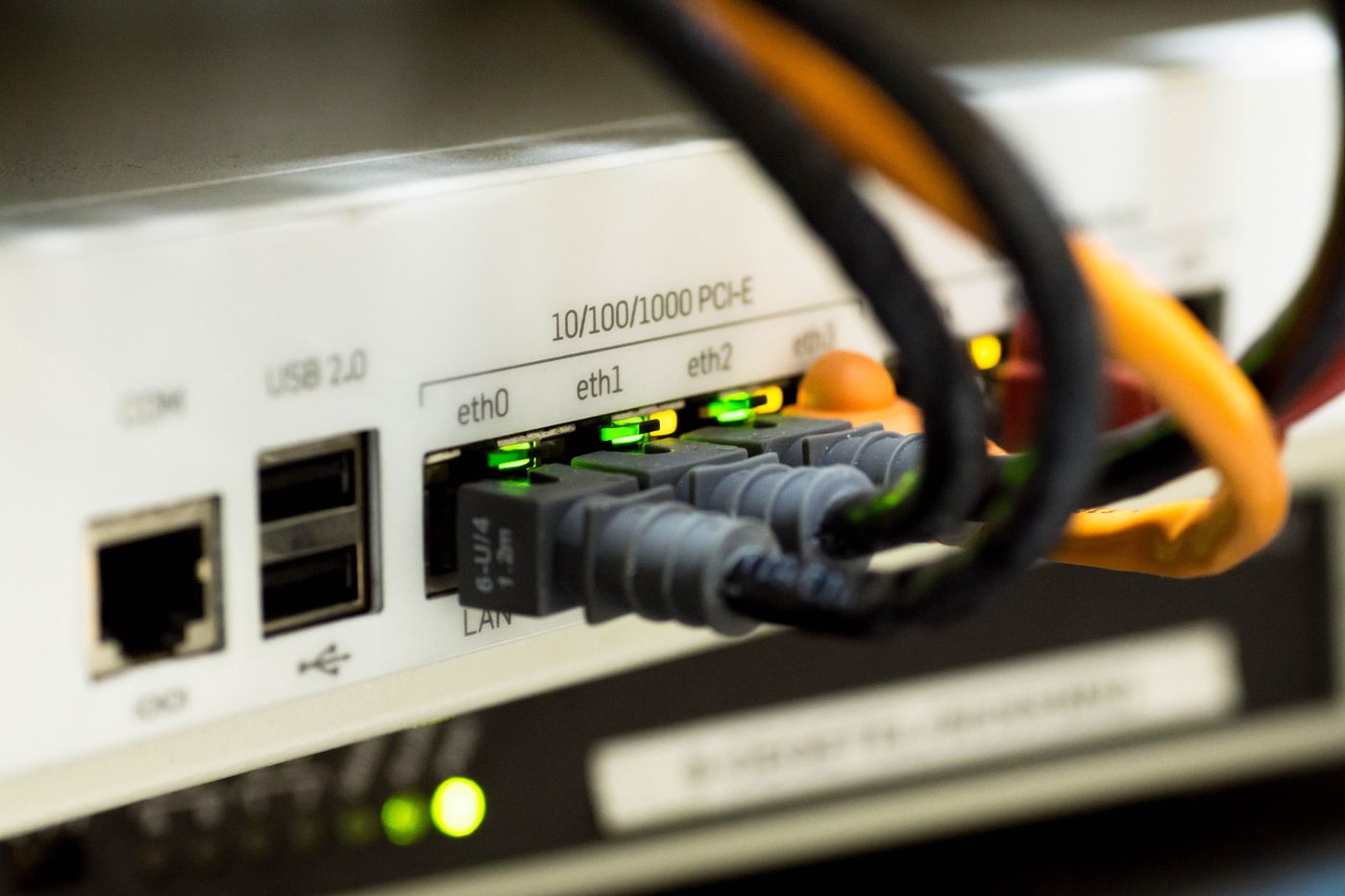
Write down which physical device you expect to see on each external input. If you can safely see ordinary connections, look for numbers or labels beside the connectors without pulling the TV away from an unstable mount or putting strain on the cables. Use a light or the manual if the labels are difficult to read. Stop if getting to a connection would require somebody to hold a heavy screen or change equipment you are unsure about. The input selector offers useful clues even when the back of the television is not readily accessible.
Notice equipment between the device and the screen. Some homes send a picture directly from a console to one TV socket. Others connect the console and another source to an HDMI switch or an audiovisual receiver. In that case, the TV might need to stay on one input while the intermediate equipment selects among devices. Write the route in order so a second person can understand which control changes what. “Console, then receiver Game, then TV HDMI 2” is an example. Confirm the actual labels on your equipment before making your own map.
Confirm inputs with visible changes
Choose a device you know is working and start it normally. Use a recognizable view on its opening screen to confirm it is the device you want. If its picture appears after you select an input, write that result down. Then return the device to a resting state using its ordinary controls. Repeat with another source you rely on. A lamp or power indicator can tell you the box is awake, but you still need a recognizable picture to confirm the selected path.
Some TVs and attached devices can communicate power or input changes through a supported HDMI control feature. If a television automatically switches inputs when a box wakes, observe where it lands before changing any setting. Automatic behavior that makes one device convenient can be confusing when two boxes wake close together. A map can still describe the manual choice for each route. If the automatic behavior is a problem, check the television and device documentation, and change only one relevant setting with the understanding of others who use the equipment.
Try the route twice: once with everything already awake, and once from the equipment's normal resting condition. Wait for the devices to reach an ordinary ready state. A picture that appears only after a delay can look like a failed connection if you switch away too quickly. Note where any startup logo appears and whether the screen turns blank afterward. Those observations help distinguish a source that never showed a picture from one that displayed a logo and then changed what it was sending.
Diagnose a missing picture without guessing at everything
Begin by confirming what the TV says. “No Signal” next to the correct HDMI input is a different observation from a dark image where television menus are still visible. Choose the input from your map, wake the source normally, and check intermediary equipment if there is any. Sony's troubleshooting guidance recommends checking the correct input and the source connection. Other manufacturers may use different menus, so follow the instructions for your model. Record the first step that makes a difference instead of repeating a full series whenever the same symptom occurs.
Check whether a known-good source still shows on its own usual path. If it does, you know the TV can show at least one external picture through that arrangement. It does not prove that every connector or display mode is configured correctly. A TV input may have options that vary by connector or model, and a given cable or intermediate device may support only certain combinations. If you change something, keep the original route written down so you can restore it without making a second guess.
When the manuals say it is appropriate and you can reach the connectors safely, you can compare one ordinary connection at a time. For example, test the affected device over a known working path, keeping other elements constant where possible. Use compatible connections and observe any relevant power instructions. If the combined route includes a receiver or switch, a temporary direct comparison may help distinguish that route from the device itself. Restore the normal arrangement after testing and record any difference. Never force a connector, handle damaged cables, or disturb furniture or equipment you cannot safely move.
Picture capability matters when a source works in one configuration but not another. If the source can start in a standard picture mode and the official support guide provides a way to choose compatible settings, read that guide before acting. Avoid reading one successful test as proof that every picture mode will work through the same route. Start with a simple goal: a stable, recognizable picture on the expected input. Higher resolution or more specialized display modes can be tested once that ordinary path is understood.
Give the labels a job each person can do
If the TV lets you rename inputs, choose plain labels people are already likely to say, such as Console or Disc Player. Leave the port number on a card near the remote if the onscreen label hides it. If a name is already used for an old device, revise it only after you know what it currently points to. A label that points to the wrong socket is worse than a number people can verify. Include the intermediary equipment's selector when necessary.
Make a small card or a note close at hand. Put one route on each line, in the order someone can follow: select the TV input, turn on the expected device, and set the receiver if needed. Use the names visible on actual controls. If one remote uses icons instead of familiar words, explain which button opens the input list. An ordinary note that gets the viewer to the working picture is more useful than a wiring diagram that takes twenty minutes to interpret.
Add one recovery instruction that fits the household. It can be “if the TV wakes on the wrong input, return to HDMI 2 and look for the console home screen.” Let another person try it without prompting. Watch for the parts they interpret differently. If they reach for the wrong remote or search for a nonexistent label, change the card. If the route to a device has to be different for different activity, put the difference on separate lines rather than hoping the user infers it from context.
Compare the next change against the old map
When somebody adds a streaming box or moves a console, keep a copy of the old route until the new one is tested. Insist on only one clear change at a time when possible. Assign the new device a port, record the label, and verify that unrelated routes still work. Try the normal waking sequence again. A device that occasionally changes inputs by itself is easier to identify when everyone knows the state the television was meant to be in.
Add the month or date at the top so you can tell whether the map was made before the last equipment change. If multiple people have a copy, replace the older instructions where they normally look.
The map is successful when a viewer can select the intended picture without knowing the story of how the equipment was installed. When something fails, the same view becomes a reference point: you can describe what should appear, what appears instead, and which exact part of the path you changed. A tidy installation can hide its own wiring. A good input map puts the useful part back in view.